
Member management
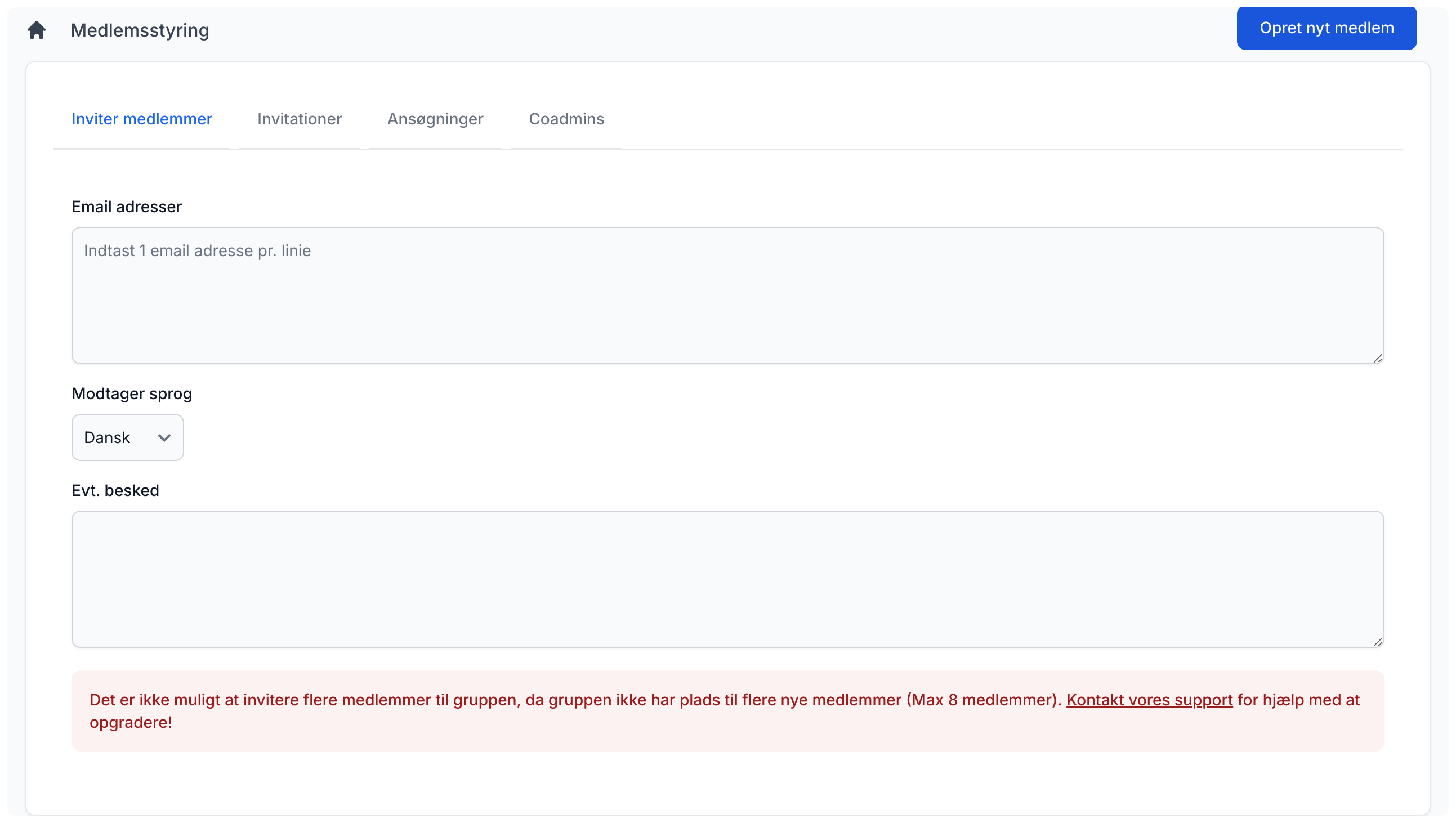
This is the "core" area where you, as an admin, manage the members of your group. The first tab shown below is used to invite new users to your iGroup. You enter one or more email addresses (one email per line), choose the recipient language, and optionally add a message. Then click the "Invite user(s) to your group" button. The system will then send an email to each user explaining what they need to do to become a member of the group.
Invitations
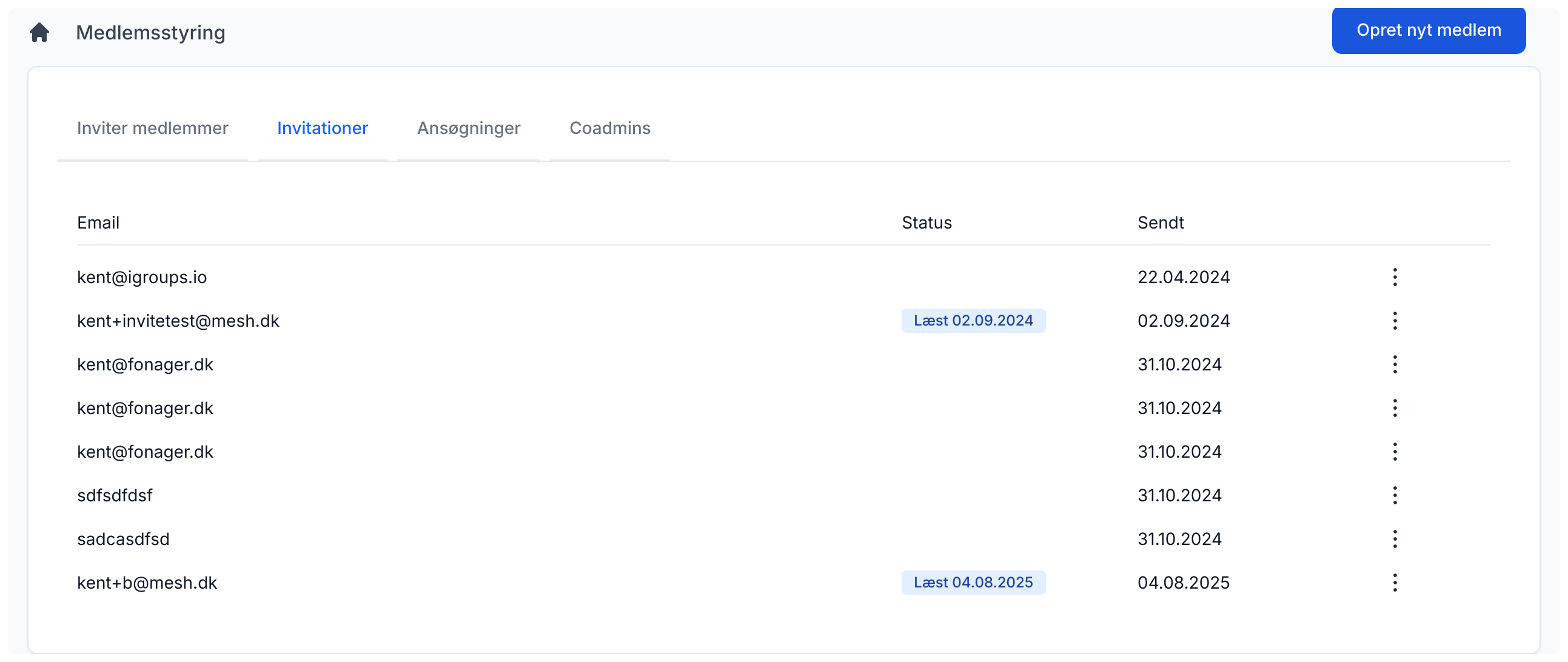
This tab gives you an overview of the invitations you have sent for the group. Here you can see whether the user has read your message or not. From the "More options" menu you can choose to delete a given invitation.
Applications
This tab gives you an overview of all membership applications to the group. This is only possible if your group was set up to allow applications when it was created.

Co-admins
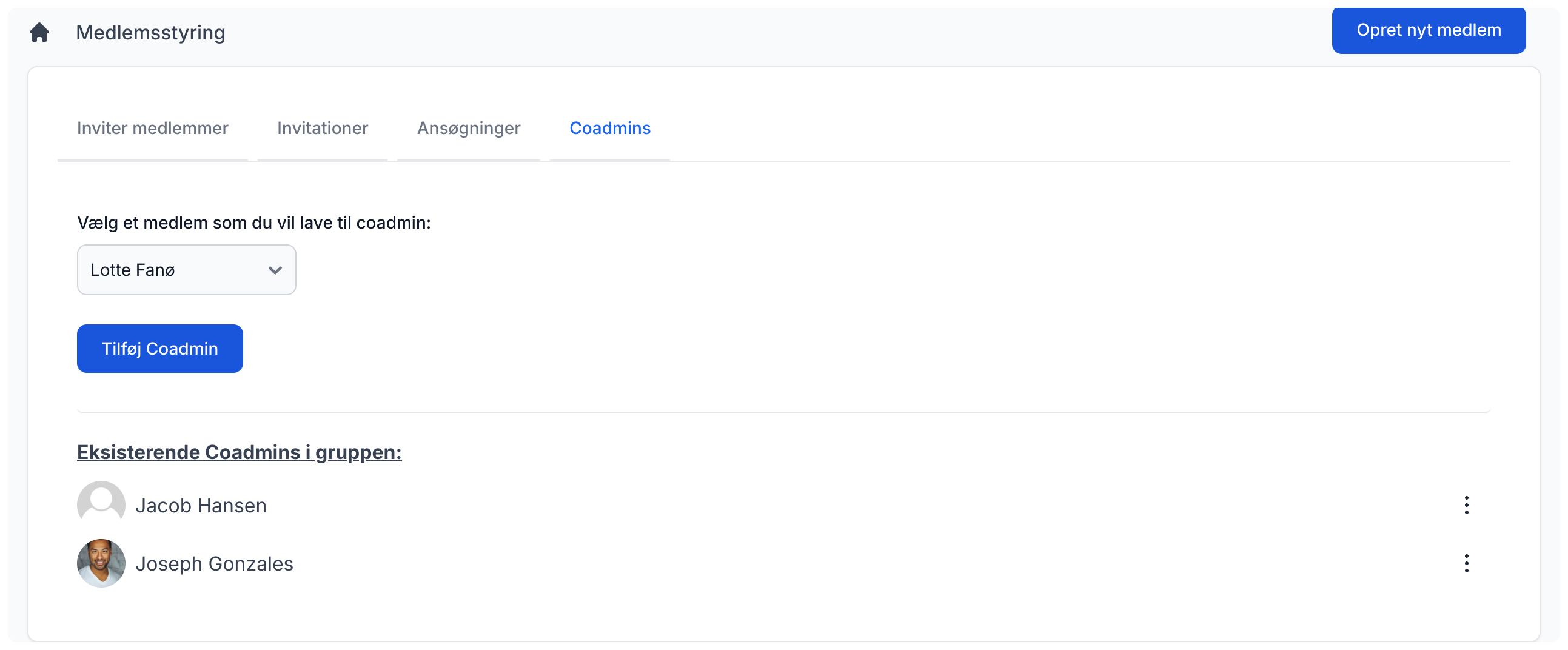
This page is used to create, view, and delete co-admins in your group. You can add as many co-admins as you want. Select a member from the list and click "Add co-admin" and the user will get the new status. An email will also be sent to the user about this.
Create new member
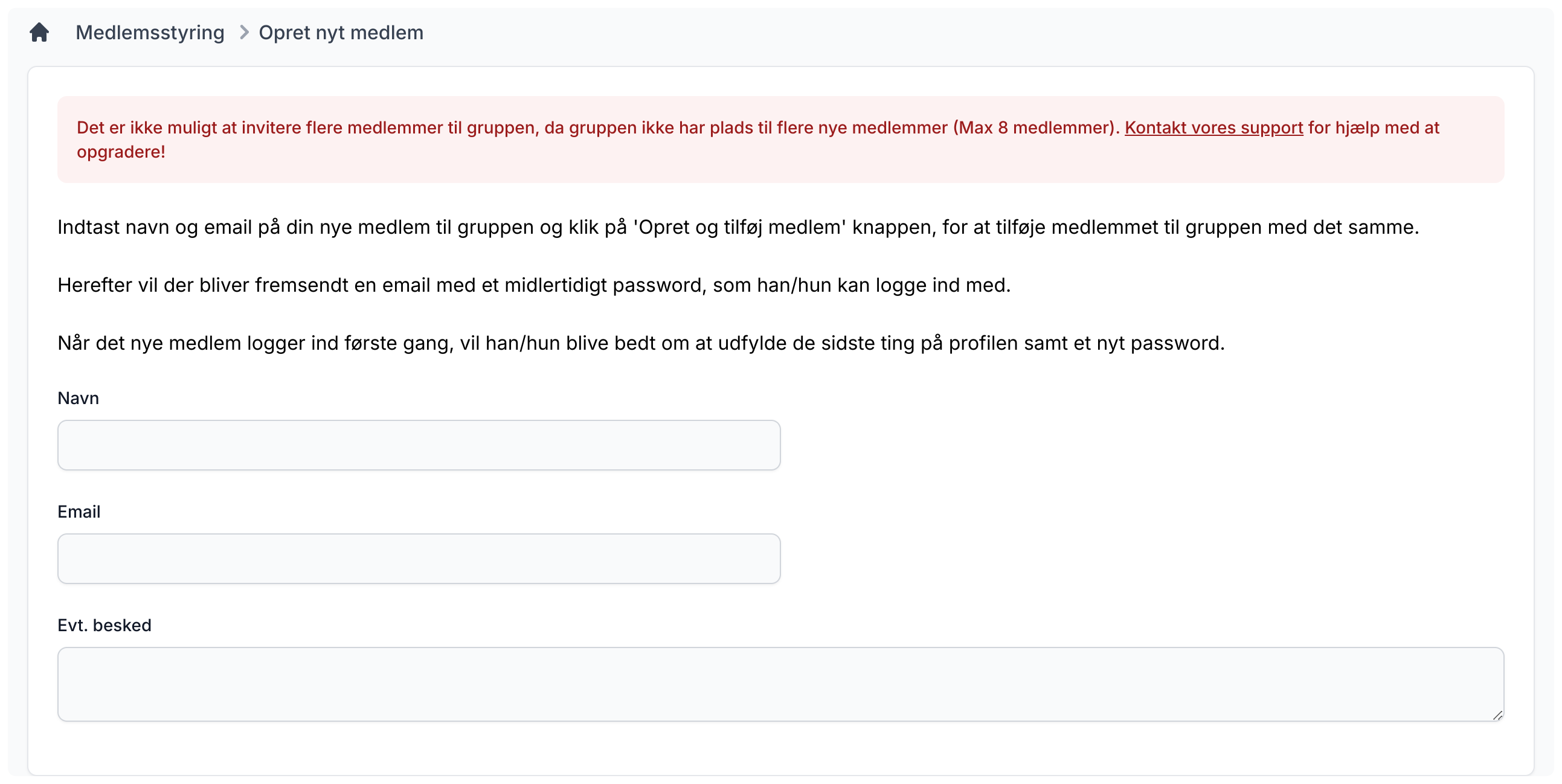
Some administrators prefer not to send invitations and choose to create all users themselves. This is done by clicking the "Create new member" button at the top of the page. Then enter the name and email, and optionally a message to the recipient about the creation. The user will receive an email with a temporary password. After the first login, the user will be asked to choose a new password before continuing.
Transfer Administrator Role
If you wish to step down as an administrator, you must transfer the role to another member of the group. To do this, click the "Transfer Admin Role" button at the top of the "Member Management" page. You can then select the new member, who will become the administrator immediately.
Please note: You will lose your administrator privileges immediately after the transfer.