
Conversations
This is where you can write messages directly to one or more other members of the group.
On the overview of existing conversations, you can open a menu by clicking the three small dots next to each conversation. This menu allows you to either leave the conversation or delete it.
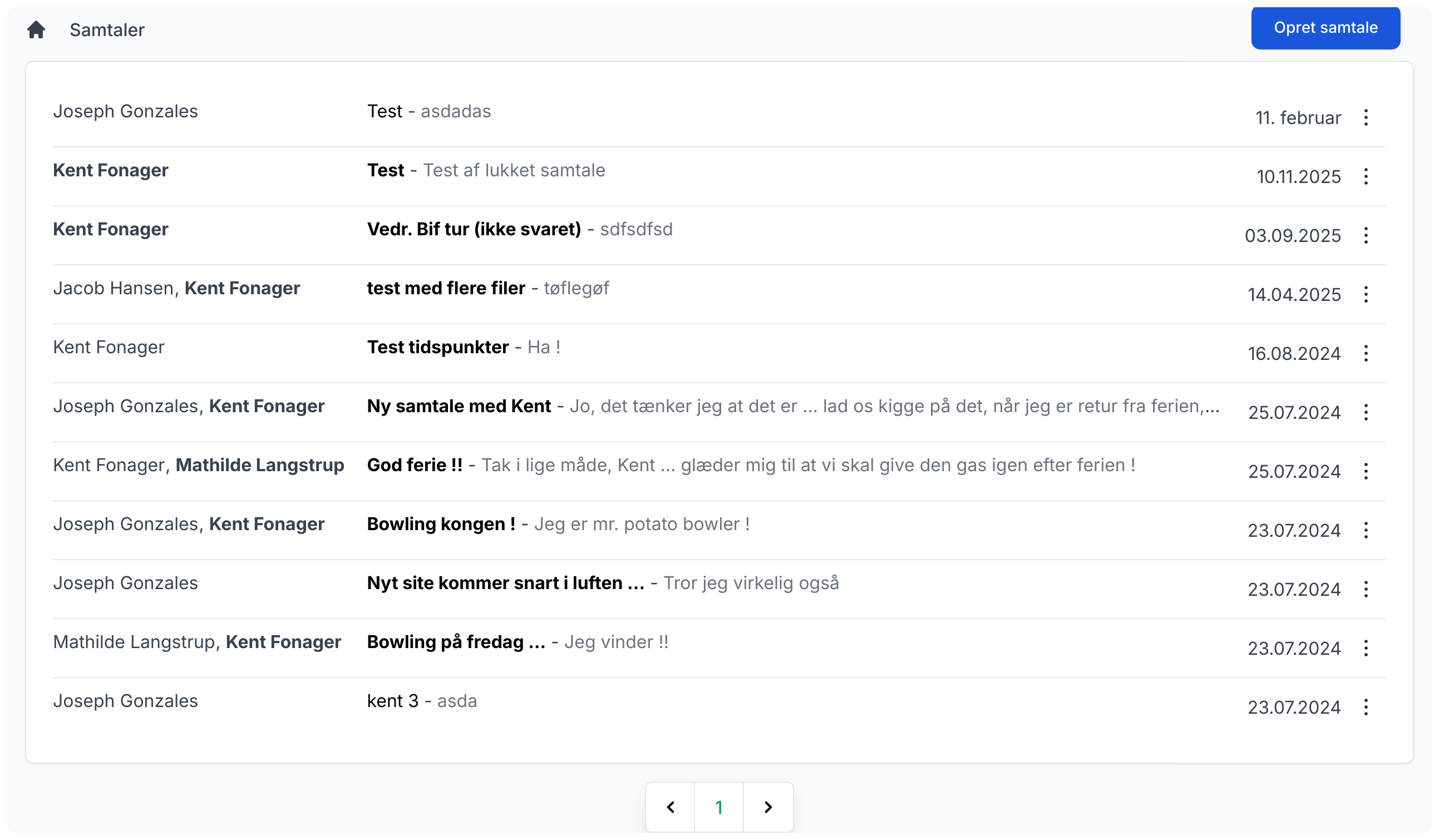
Read conversation
To read a conversation, click the conversation you want to open. This takes you to an overview of all messages in that conversation. Next to your own messages there are three small dots that open a menu. From this menu you can choose to edit or delete your reply.
If you do not want to receive an email every time there is a new reply, you can toggle this on or off at the top of the page via "Email notification".
Reply to an existing conversation
If you want to comment or reply in an existing conversation, write your reply at the bottom of the page and click the "Send message" button. You can also attach one or more files to your reply.
Create new conversation
To create a new conversation, click the "Create conversation" button. You can then freely choose among the members and/or recipient groups that have been created for your group. After that, enter the subject of the conversation and the content of the message. If you want to attach one or more files, that is also possible. Click "Send message" to create your new conversation.
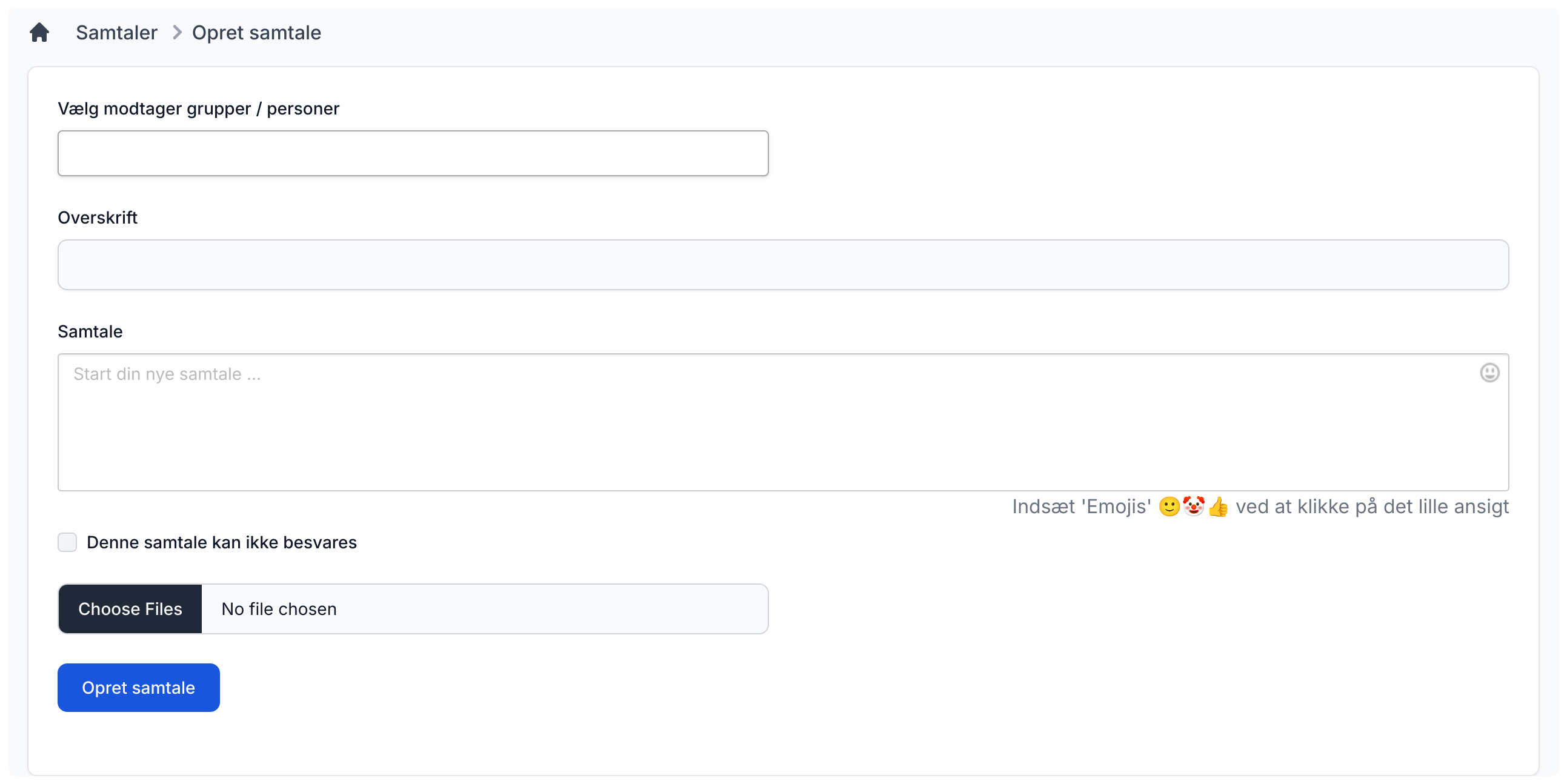
If you want to create new member groups, read more here