
On this page
Members
Here you can see all the members of the group. If you want to see more details about a member, simply click the name or the card, depending on which display type you have selected in your settings.

View member
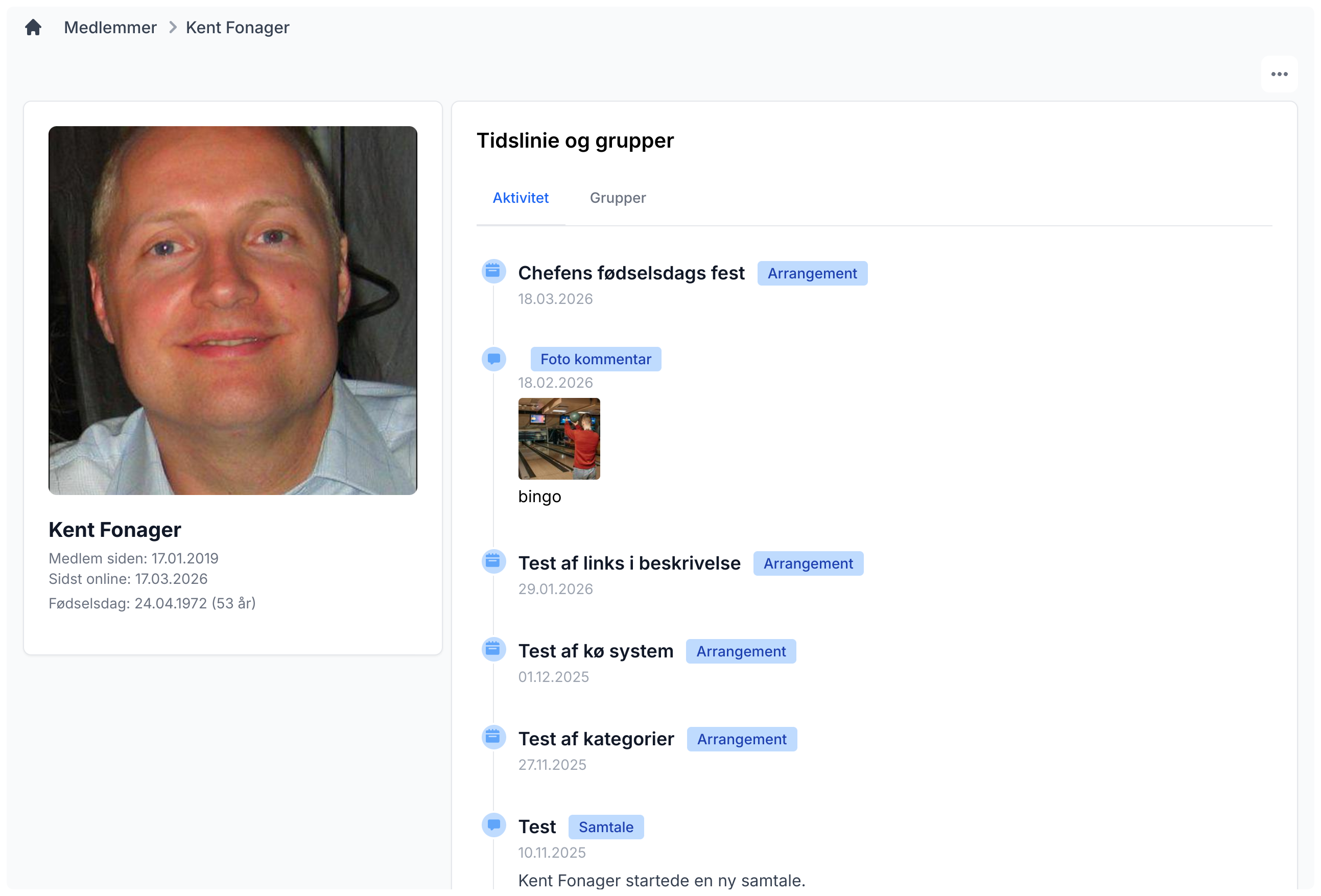
Here you can see basic information and a photo of the selected member. If the member has allowed private information to be shown as well, such as email, phone number, and address, this will also be displayed. Next to that you can see a timeline for the member, showing that member's activities in the group. You can also see which other groups the member belongs to, if the member allows this.
If you are an admin or co-admin, you can open a menu by clicking the three dots in the top-right corner, where you can edit the user's info, reset the password, or remove the user.
Edit user
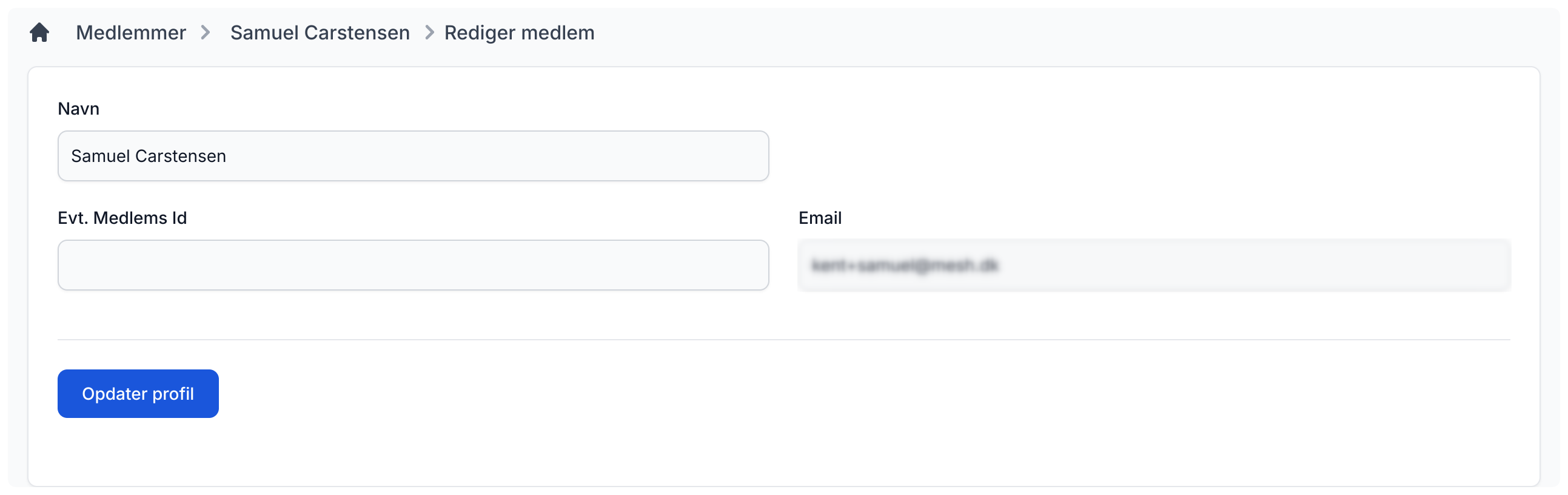
If you are an admin or co-admin, you can update the user's name, ClubId, and email address.
Reset password
If you choose this menu item, it gives you as admin the ability to reset a user's password. This will send an email to the user with instructions on how to reset the password.
Print member list
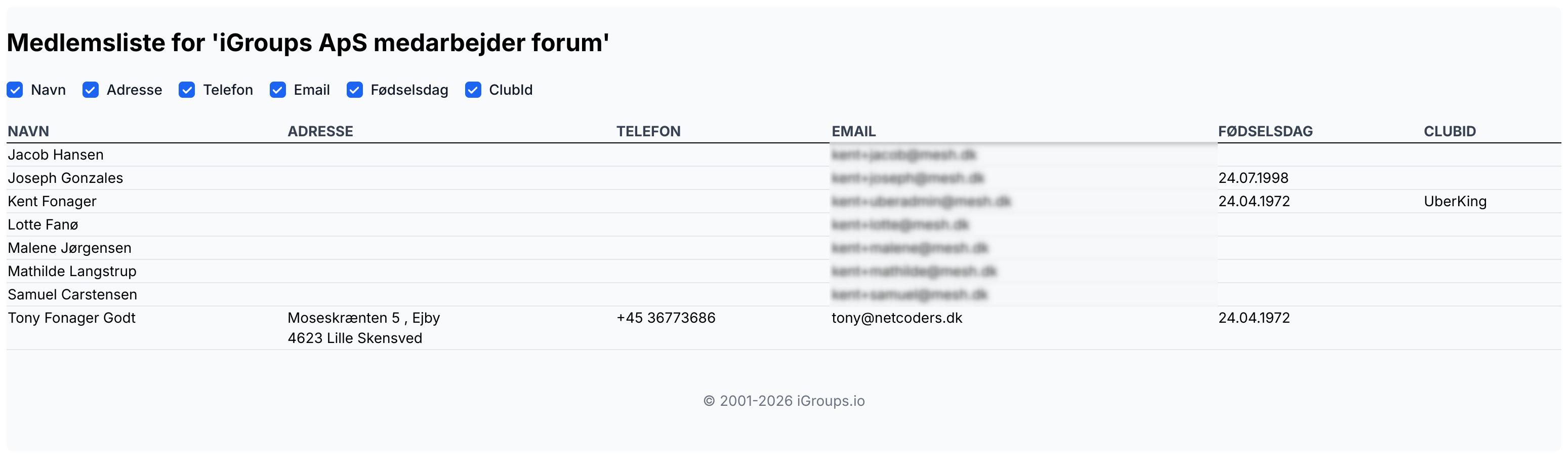
It is possible to generate an overview of all members that can be saved or printed. This is done by clicking the "Print member list" button in the top-right corner.
Settings
By clicking the gear icon in the top-right corner, you can open the side menu for settings. Here you can configure the following:
Display type: Whether members should be shown as a list or as "business cards"
Sorting: Whether members should be sorted by "Last online" or "Alphabetical"