
Events
When you open this page, it will always start by showing the group's upcoming events. You can switch between views by clicking "Upcoming" or "Previous". If a specific event requires registration, this will appear after the event name in parentheses. If you have already answered whether you are attending or not, that will also be shown next to the event. If you are an admin or the creator of the event, there will be three small dots that open a menu. This menu allows you to edit or delete the event.
If you choose to delete an event, all registrations will also be deleted and this action cannot be undone!

View event
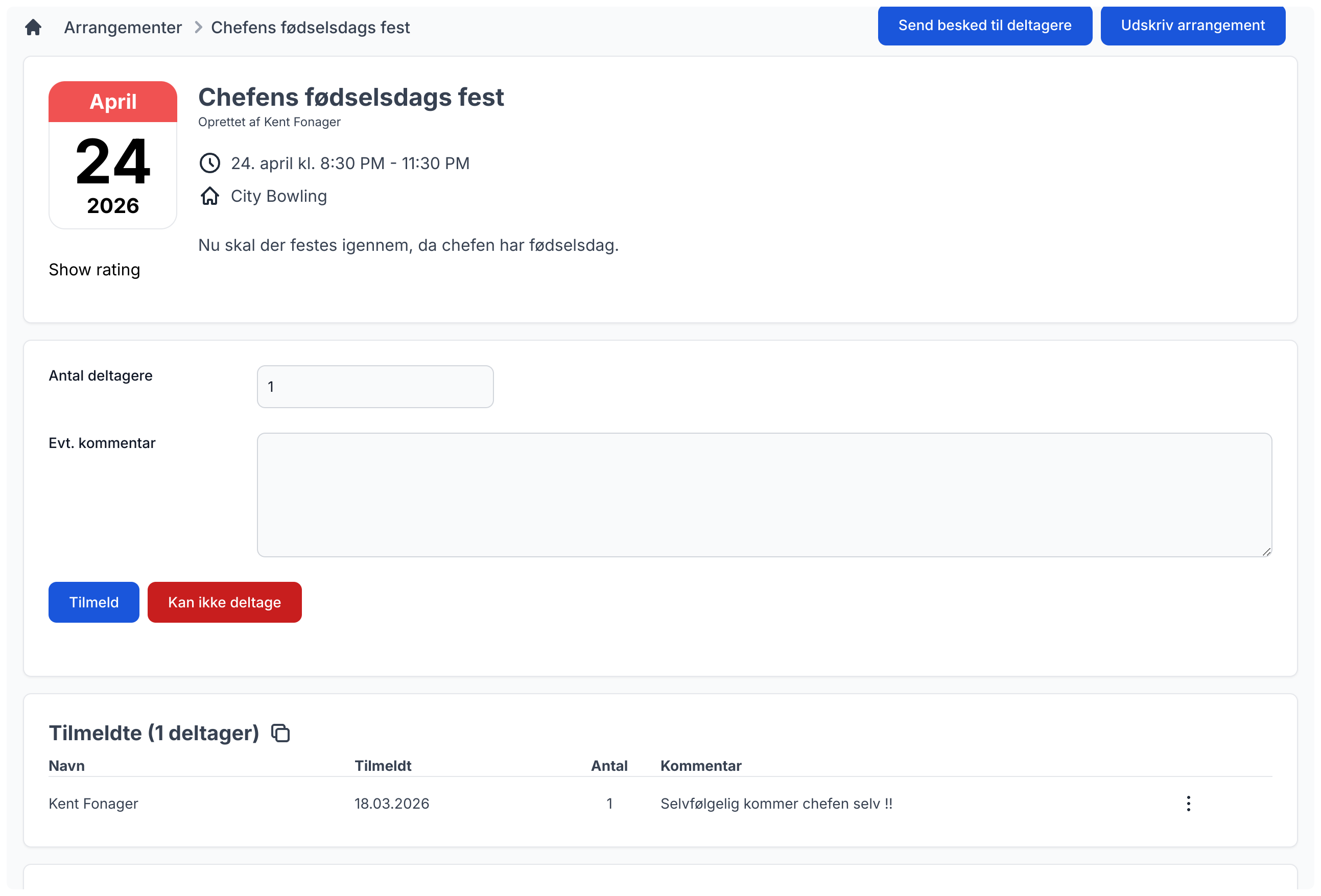
When you open an event, you can see all details and any attached files. If it is an event with registration, you can also register or unregister and see the replies from the other group members. As the owner of an event, you can also send a message to participants by clicking the "Send message to participants" button and print the event using the "Print event" button.
Create new event
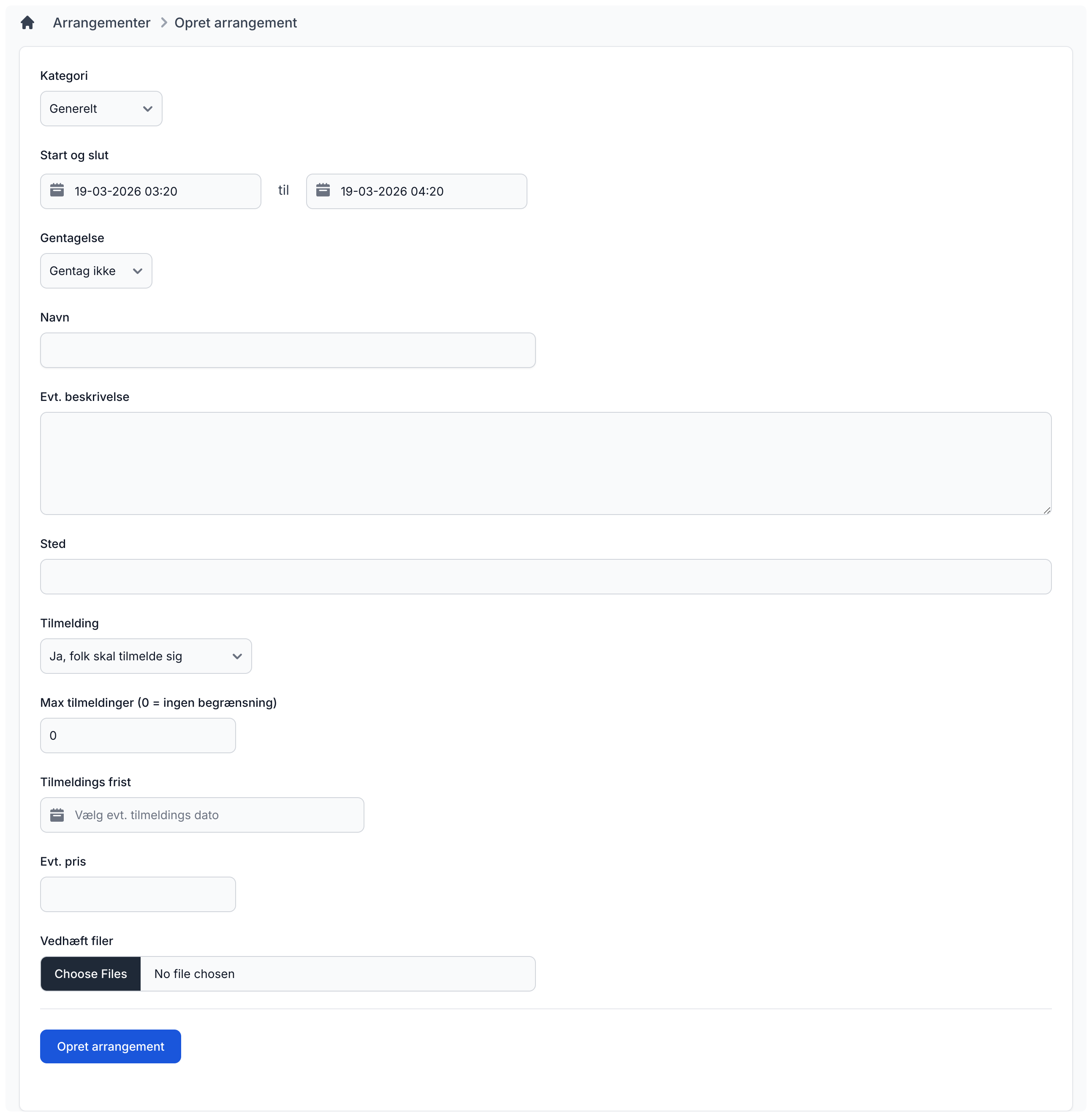
To create a new event, you first choose a category. Then choose the start and end times. After that, decide whether you want it to be a one-time or recurring event. Then enter the name and optionally a description. You can also add an address for the event.
It is then up to you whether the event should require registration or simply be an open event. If you choose registration, you can also set a deadline for when users must register. You can also choose whether there is a maximum number of participants.
If you want to attach one or more files to the event, that is also possible. Click "Create event" to create the event.
Send message to participants
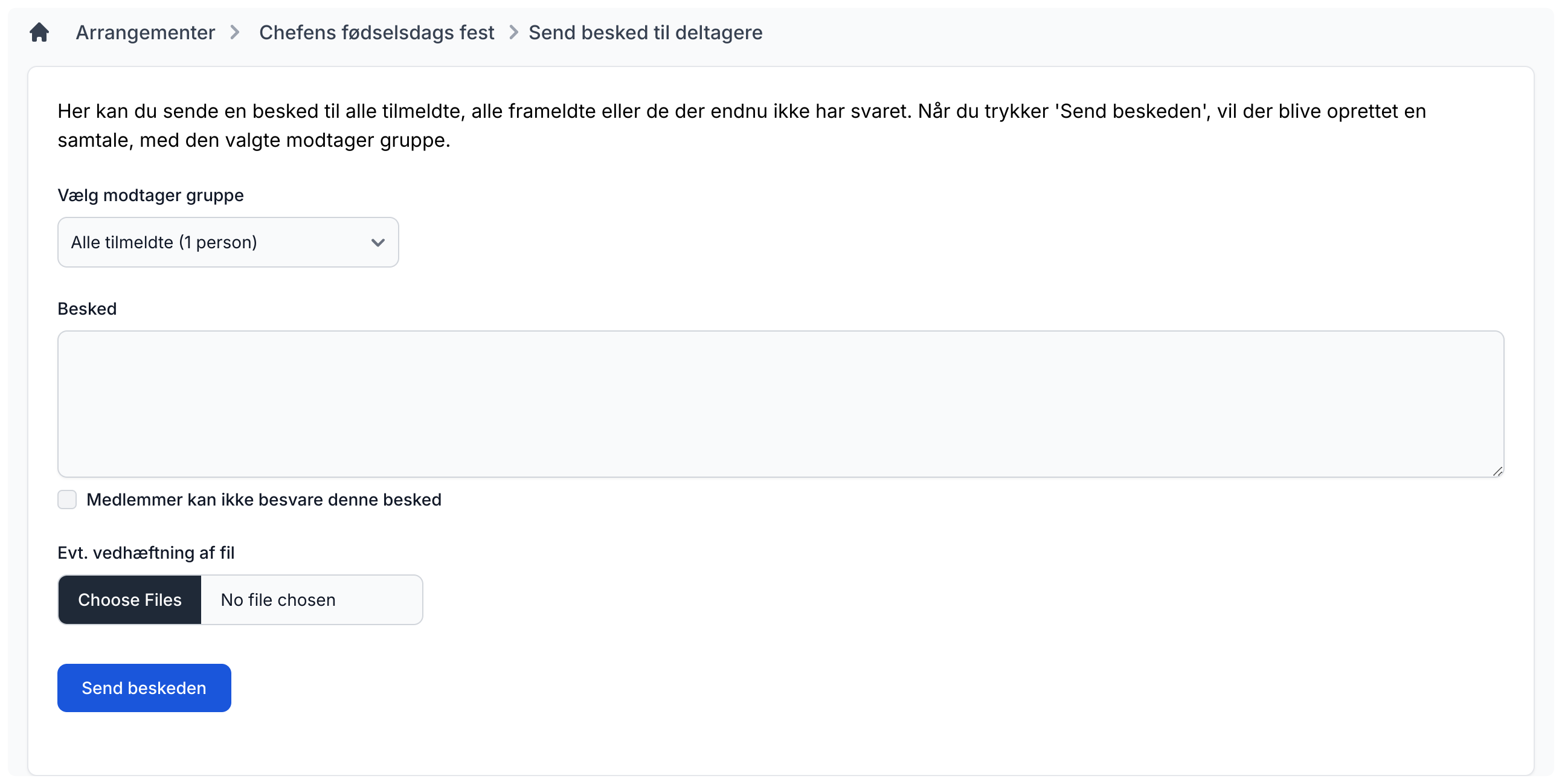
If you are the creator of an event, you can send a message either to all registered participants or to those who have not replied yet. At the same time, you can write a message to them and also attach one or more files to it. This could be the day's program or driving directions.
This feature creates a new conversation with the selected members. The creator can choose whether comments are allowed on it via the checkbox "Members cannot reply to this message".
Categories
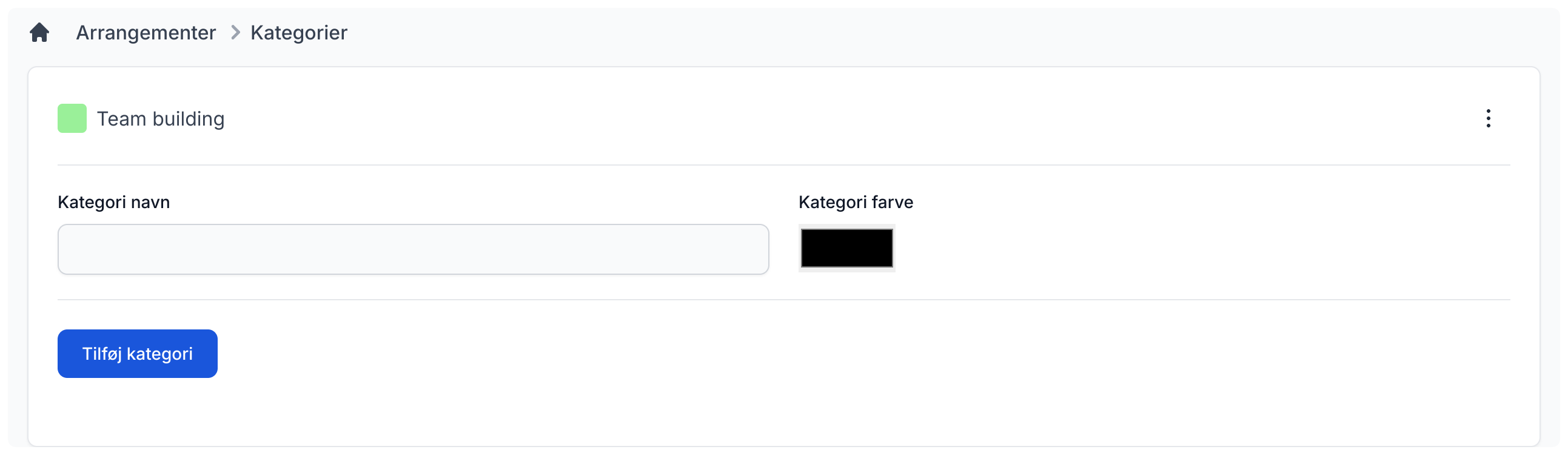
By clicking the "Categories" button on the front page, you get to an overview of the categories already created for your group. If you want to add a new category, enter the category name, choose a color, and click the "Add category" button. These colors will also be used in the calendar.
Settings
Admins can decide whether everyone can create events or only admins.